
Efficient reporting is at the heart of smooth project management. We’ll walk through how to create, edit, and approve reports in Clodify, our intelligent CRM/ERP platform. Whether you’re a team member logging hours or an admin overseeing reports, this guide shows you the full flow.
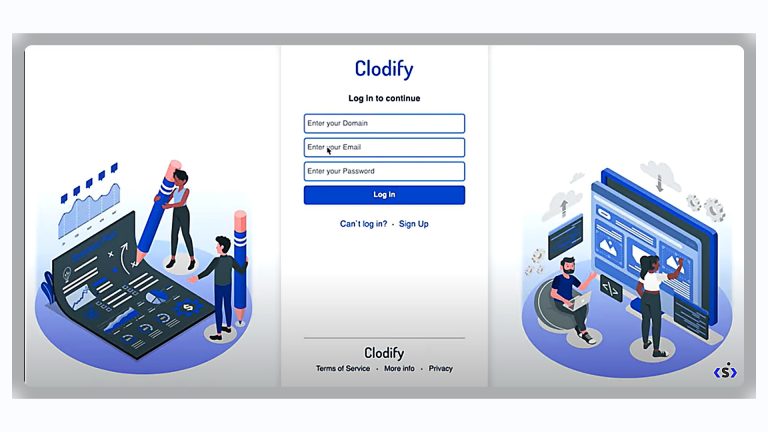
📌 Logging In as Admin. To demonstrate the process, we’ll log in with admin privileges. This allows not only report creation but also managing reports across all users in the system.
📌 Submitting a Report
- Choose a project – For this demo, we’ll select the John Do Project.
- Set the date – You can submit reports for any date, but here we’ll use today.
- Describe the task – For example: “Test task.”
- Add time spent – Enter hours and minutes (e.g., 1 hour 50 minutes).
- Save – The report now appears under My Reports for Today and is visible in the project’s reporting section.
📌 Editing a Report
Reports are flexible and can be updated:
- Change task description – For example: “Task 123.”
- Adjust time – Update to 2 hours 50 minutes.
- Switch project – Assign the report to another project, like Internal.
After saving, the report is updated with new details.
📌 Viewing All Reports as Admin
As an admin, you have visibility into all users’ reports. This includes:
- Hours logged
- Associated costs
- Task descriptions
This feature ensures full transparency across the team.
📌 Approving or Disapproving Reports
Admins can approve or disapprove submitted reports:
- Approve – Highlights the report in green and marks it as confirmed in the user’s “My Reports” section.
- Disapprove – Leaves it unapproved until corrected.
This process helps maintain accuracy and accountability in project tracking.
Clodify makes it simple to log, manage, and approve work reports. With just a few clicks, team members can submit their progress, while admins maintain full control and oversight.
👉 Want to see it in action? Contact us for a live demo and discover how Clodify can streamline your workflows.