
When approving an e-commerce storefront design in Figma, a business owner usually sees a flawless, static picture. But in reality, when a content manager uploads a real product title that takes up three rows instead of one, that “beautiful layout” shatters into pieces. If the designer worked like a free artist rather than an engineer, the developer will have to patch things up on the fly. For the client, this means just one thing: missed deadlines and overpaying for extra coding hours.
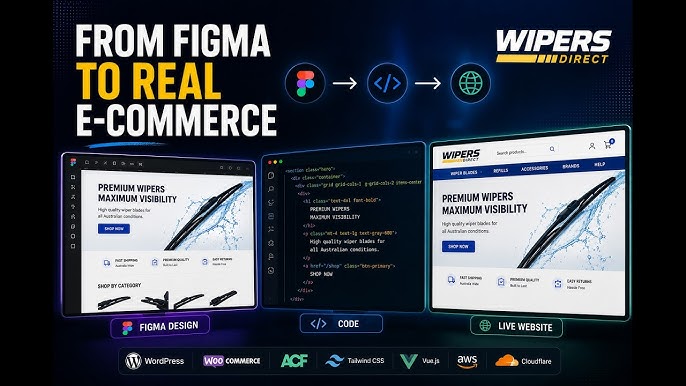
The Figma-to-Code process is all about converting visual layouts into clean, working website code. To prevent this stage from getting twice as expensive, the design must be built on components and Auto Layouts (dynamic containers) from day one. This approach maps perfectly to Tailwind CSS classes used in modern frontend development. The project comes together fast, like a LEGO set — strictly following the layout (Pixel Perfect) and free of technical clutter.
How can a business owner stay in control of this process without diving into the source code? Here is a simple checklist.
Setting the Spec: What to Look for in Layouts
You don’t need to learn how to code, but you should set the right technical boundaries for your designer from the very start.
- Lock down a unified design system. A developer will code exactly what they see in the layout. If there’s a 20-pixel gap in one place and a 23-pixel gap in another, that’s exactly how it will be hardcoded. The result? The website will look messy, and blocks will visually “jump” around. Once you notice this on the live site and ask to align the spacing, the developer will have to dig into the stylesheet and refactor the code. It is much cheaper if the designer uses a unified spacing grid right away (e.g., all paddings and margins are multiples of 4 or 8 pixels).
- Check the “edge cases” for elements. Ask to see how a product card behaves when the title is way too long, or when a product doesn’t have a promo price or a “Top Seller” badge. The block must compress or expand naturally without breaking.
- Demand responsiveness across all screens. A designer shouldn’t just draw a desktop version and an iPhone version. It’s crucial to see how the website behaves on intermediate screens like tablets.
3 Questions to Ask Your Designer Before Paying for Layouts
Want to check the quality of the work? Just ask your designer these questions. Their answers will instantly reveal their technical workflow and dev-readiness:
- “Did you use Auto Layouts for all lists, cards, and buttons?” If the answer is “no” or “partially,” the layout was drawn by eye, and the development phase is going to cost you a pretty penny.
- “Is there a dedicated UI Kit page (components, hover states for buttons, icons)?” Developers need a centralized page with all site elements in one place, so they don’t have to hunt for them across the entire canvas.
- “Are you ready to pass the layouts to our developer for a quick review before final approval?” A professional designer is never afraid of a quick technical audit from a programmer.
Why This Synergy Saves Both Your Budget and SEO
When a design is well-structured, development moves twice as fast. The programmer gets clean blocks that are easy to turn into code.
For instance, in one of our recent projects, thanks to a structured Figma file, a developer on our team was able to spin up a brand-new page from scratch instantly, matching the layout down to the last pixel without a single layout shift.
For a business, this brings direct advantages. A clean website architecture without messy workarounds guarantees lightning-fast loading speeds. Pages load instantly, your Core Web Vitals score shines green, and Google gives your custom e-commerce store a green light to climb to the TOP. Smart e-commerce optimization doesn’t start with the code — it starts with the very first line drawn in Figma.
💬 Planning a Website Development or Redesign?
Let’s save your budget. We can jump into the project during the design phase, run a quick technical audit of your Figma layouts, and let you know if they are ready for smooth coding that flies on PageSpeed.
Drop us a line in the chatbot below or text us directly on LinkedIn — let’s talk about your project!