
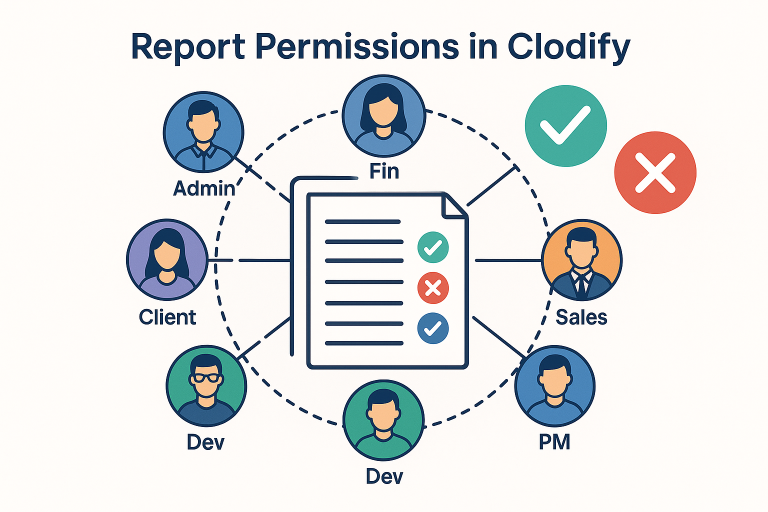
In our previous video, we explored how to approve or disapprove reports inside the Clodify system. This time, we’ll go a step further and see how different user roles interact with reports—what they can view, approve, or restrict. Understanding this is crucial for keeping workflows transparent and secure.
👉🏻Admin User: Full Control
The Admin has complete access:
- Can see all reports across all projects.
- Can approve and disapprove any report.
- Has visibility into all columns and actions.
Admins serve as the ultimate gatekeepers for reporting accuracy.
👉🏻Finance (Fin) User: Wide Access with Limits
The Finance (Fin) role mirrors the Admin in many ways:
- Can view all reports.
- Can approve or disapprove reports from other users.
- Cannot disapprove their own reports (only Admin can do this).
This ensures financial oversight while avoiding conflicts of interest.
👉🏻Sales User: Project-Specific Access
The Sales role is narrower:
- Can only see reports related to their own projects.
- Can approve and disapprove those reports.
- Cannot access reports outside of their assigned projects.
This way, sales staff stay focused on their projects without overstepping into others.
👉🏻Sales User: Project-Specific Access
The Sales role is narrower:
- Can only see reports related to their own projects.
- Can approve and disapprove those reports.
- Cannot access reports outside of their assigned projects.
This way, sales staff stay focused on their projects without overstepping into others.
👉🏻Project Manager (PM) User: Project Oversight
The PM role offers project-level visibility:
- Can view all reports within projects where they serve as PM.
- Can check the status of each report (approved/unapproved).
- Cannot approve or disapprove reports themselves.
This role helps PMs stay up to date without altering the approval chain.
👉🏻Developer (Dev) User: Personal Focus
The Developer role is the most restricted:
- Can only see and manage their own reports.
- Access is limited to the Submit a Report page.
- Cannot view, approve, or disapprove reports from others.
This keeps developers focused on task reporting while leaving approvals to higher roles.
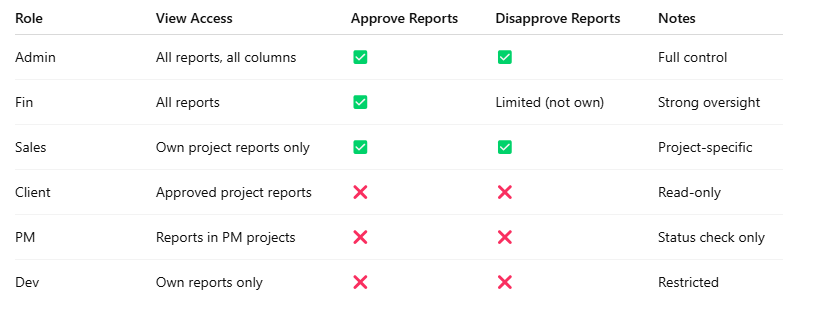
🚀 Clodify provides flexible role-based access to ensure that:
- Admins and finance staff maintain overall control,
- Sales and PMs stay aligned with their projects,
- Clients gain transparency,
- Developers focus on their own work.
This setup balances security, efficiency, and trust—essential for effective project management and collaboration.