
When managing your work in Clodify, having a clear and flexible profile page is essential. Today, we’ll walk through the Profile Page of Clodify, exploring the information it provides, as well as the fields you can edit and customize.
After logging in as an admin, you can access your Profile Page under My Account → Profile.
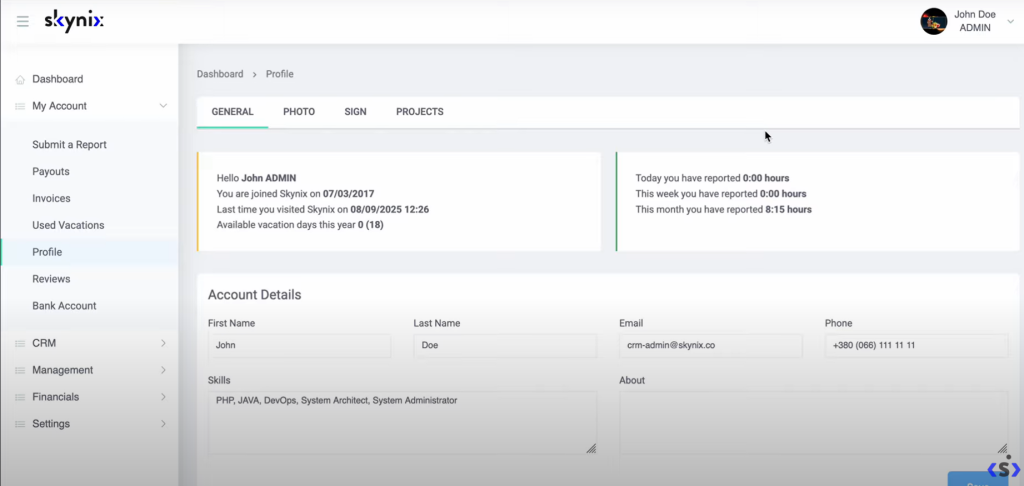
ℹ️Here, you’ll see a summary of your account, including:
- Name and user role
- Date joined the Skylink system
- Last login date and time
- Available vacation days (for example, John originally had 18 but already used all of them)
- Reports and logged hours (today, this week, and this month totals — e.g., 8 hours 15 minutes logged this month)
This section gives a quick overview of your activity and availability.
🛠️Account Details
The Account Details section allows you to edit personal and professional information:
- Update your first name, last name, and form
- Add your skills
- Write a short “About Me” description to personalize your profile
This is a great place to showcase your expertise and make your account more informative for colleagues and managers.
📸Profile Photo & Signature
Clodify also lets you personalize your profile visually:
- Photo: Upload, change, or delete your profile picture.
- Sign: Add a digital signature for official reports or approvals.
These small touches help create a professional presence inside the system.
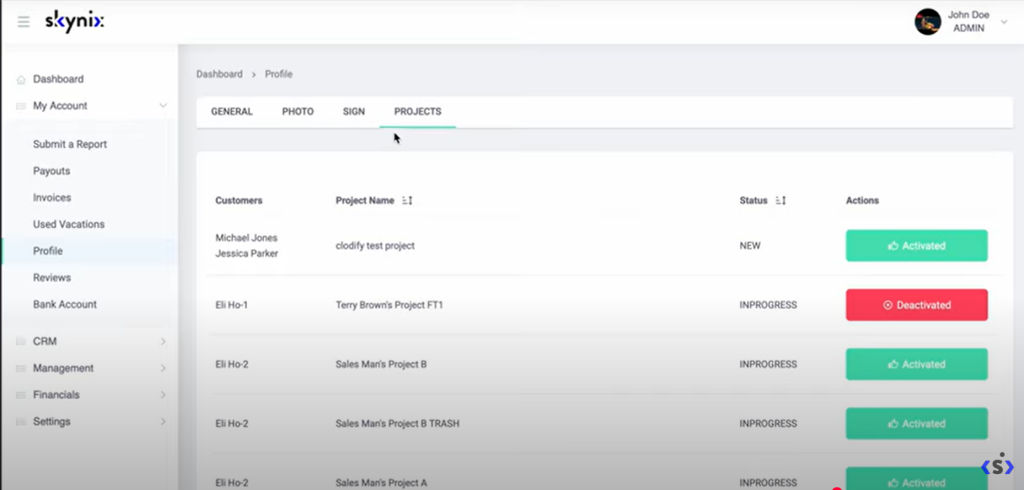
📂Projects
The Projects tab displays all the projects you are currently involved in. For example, John Doe is listed in multiple projects where he actively contributes. This gives both the user and managers quick visibility into project participation.
💡Why the Profile Page Matters
The Profile Page isn’t just a static record — it’s a dynamic hub of personal and work-related information. From monitoring logged hours to updating skills, adding a profile photo, or checking project involvement, everything is streamlined to help users stay organized and transparent.
By keeping your profile updated, you ensure that your team and management always have the right information at hand.
✅ That’s all for today’s walkthrough of the Profile Page in Clodify. Keep your details updated, and make the most of Clify’s tools for seamless teamwork and productivity.
👉You can find the full detailed walkthrough in the video https://www.youtube.com/watch?v=YKM2GVhJ–M