
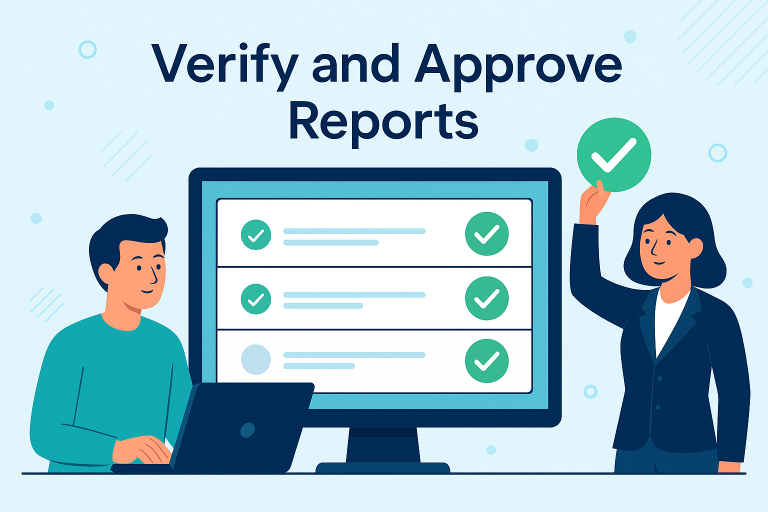
Accurate reporting is essential for smooth project management. In Clodify, each report goes through a simple approval workflow that ensures transparency and accountability. In this article, we’ll walk you step by step through how developers can check the status of their reports and what admins need to do to approve them.
Checking Report Status as a Developer
When you log in as a developer, head over to the Reports section. Here, you’ll see a list of your submitted reports:
- Green status → The report has been approved.
- Gray status → The report is pending and still requires approval.
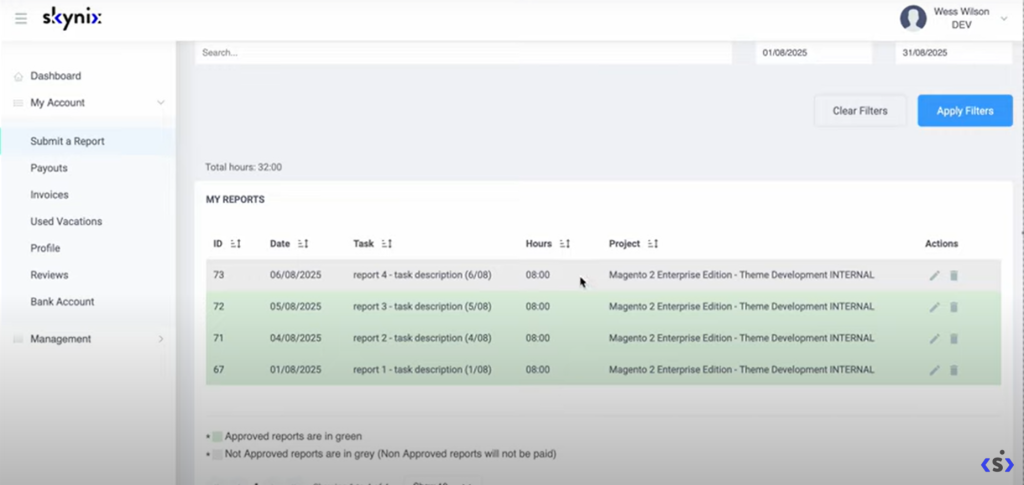
For example, if three of your reports are green and one is gray, this means only one report still needs confirmation from the admin.
What To Do If a Report Isn’t Approved ❓️
If you notice a report marked in gray, don’t worry — it simply hasn’t been reviewed yet. To resolve this:
➡️ Contact your Admin and ask them to verify the report details.
Reviewing Reports as an Admin 👨💻
Admins can log in and access the Management Reports Page. From there, they review each report by checking:
- Task descriptions
- Logged hours
- Project information
- Reported date
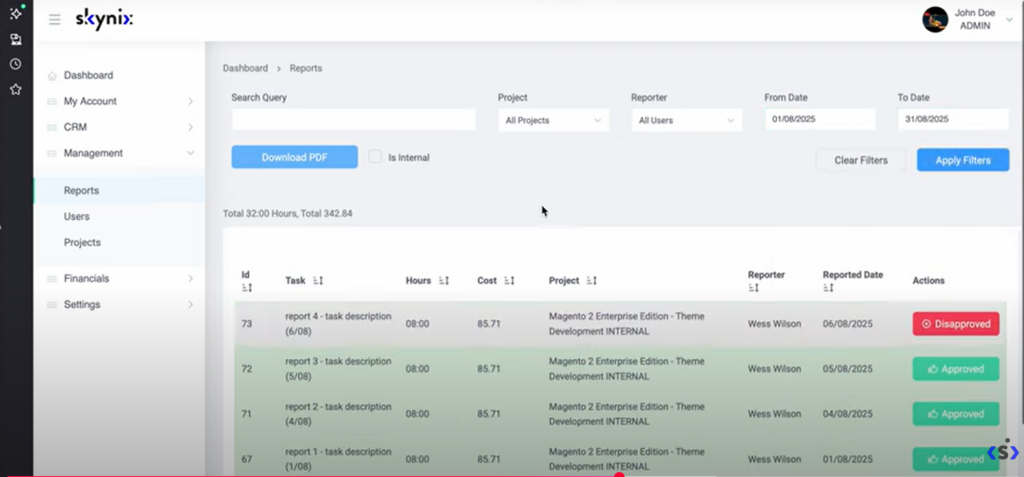
If everything looks correct, the admin approves the report with a single click.
Confirming Approval 👌🏻
Once the admin has approved the report, developers can refresh their view in the Reports section. The previously gray report will now turn green, meaning it’s been fully approved.
This process ensures:
✔ Transparency between developers and admins
✔ Accurate tracking of hours and tasks
✔ Confidence that all submitted reports are valid and complete
✅ End Result:
When all your reports appear in green, you know everything is approved, validated, and ready to be used for project or financial reporting.
Learn More Here: 🌐 https://clodify.com/